
Tactics Boards for Football Streams: How to Add One to Your Channel
Every football fan has an opinion on why a team won or lost. The channels people keep coming back to are the ones that can show it. Drawing a back four pushing too high, or a midfield getting overrun, lands far harder than describing it, and the tool that does it is the tactics board.
It's a staple of broadcast punditry, and it has been out of reach for most fan channels, because the old options were screen-sharing a clunky app or pausing the show to sketch on a whiteboard. That's changed. You can now run a proper tactics board live on your stream, edited in real time, with nothing for your viewers to do except watch.
What is a tactics board?
A tactics board is a pitch on screen that you can put players on and move around. You set out the two teams, choose their formations, and then use it to explain what's happening: where a team is pressing, how they shape up when they defend, who's coming on and where they'll play.
On television it's the big touchscreen pundits walk up to at half time. On a stream, it's the same idea at a scale one person can run: the pitch appears next to you, you move the players, and your viewers see every change as you make it.
Why a tactics board belongs on a fan channel
Fan channels have a problem broadcasters don't: if you're running a football watchalong, you never show the match footage. Your viewers watch the game somewhere else, and your stream is the conversation around it. A tactics board gives you something to show that is entirely your own.
It works at every point in the day:
- Before kick-off, to walk through the starting XIs and talk about how each team will set up.
- At half time, to explain what's going wrong and what each manager needs to change.
- During the match, to break down a goal or a spell of pressure while it's fresh.
- After the final whistle, for the post-match analysis that keeps viewers around rather than clicking away.
It also makes your content easier to tell apart from everyone else's. Plenty of channels have opinions. Far fewer can put the pitch on screen and prove the point.
What a good tactics board for streaming needs
Not every tactics tool works well on a live stream. The ones built for coaches have too many controls, and the ones built for video editors take too long. For a live show you want:
- Real squads. Typing in twenty-two names before every show isn't going to happen. The board should load the teams for you, with real names and shirt numbers.
- Quick formations. Pick a shape and have the players fall into it.
- Fast, simple movement. Dragging a player should be as easy as picking up a counter.
- Ways to show a point. Highlighting players, joining them with a line, or drawing a shape around a unit.
- Substitutions. You need a bench, so you can bring a player on and take one off.
- A clean output. Viewers should see the pitch and the players, not your buttons and menus.
- Live updates. Every move should appear on the stream as you make it, not after you press publish.
The Stream Builder tactics board
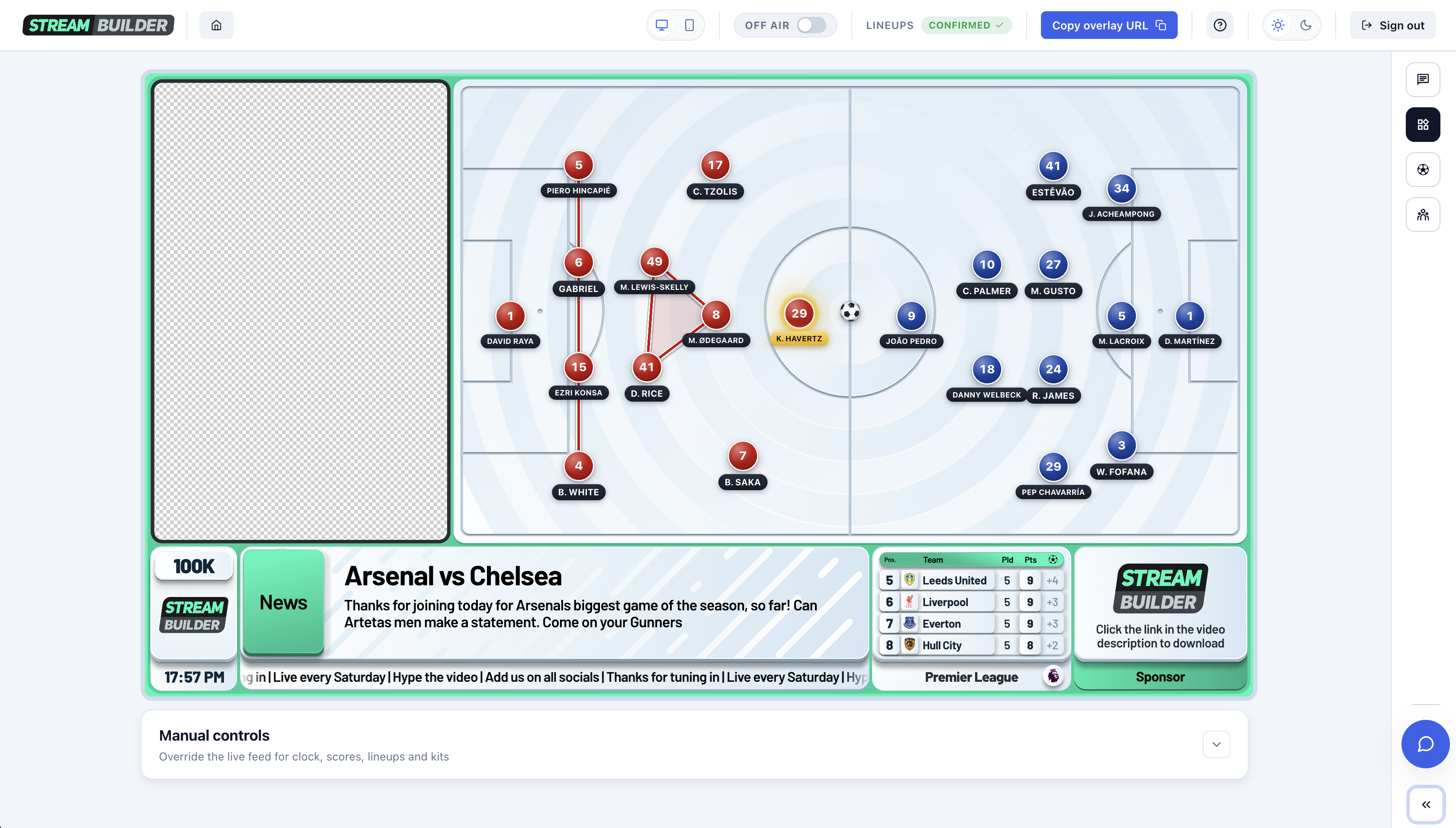
Stream Builder's tactics board is built into the platform, so it runs from the same back office as the rest of your overlay. It has two halves: the board you control, and the widget your viewers see.
Setting up the teams. There are two ways to get a match onto the board. You can search for any club and its squad loads onto the bench with real names and shirt numbers, which means you can set up any fixture you like, not just the one on your overlay. Or, if your overlay is showing a fixture, you can load its lineups with one click, which adds both starting XIs, confirmed or predicted, already in formation.
Either way, you can change each team's shirt colour and its goalkeeper's, so the two sides are easy to tell apart.
Formations and movement. Choose a formation for each side and the players on the pitch move into shape. From there, you drag players wherever you need them, and the ball too. Tap a player's name to change their number or name, mark a goalkeeper, or send them to the bench. Toggle the names off if you want a cleaner pitch, and if you slip up, undo and redo are there.
Lines, shapes and substitutions. Tap a player to highlight them, and once you've highlighted two or more, join them with a line. Highlight three or more and you can draw a shape around them, which is perfect for showing a defensive block or the gap between the lines. To make a substitution, send a player to the bench and bring another on. The substitute appears on the pitch ready to drag into position.
Nothing to publish. The moment you move a player, draw a line or make a change, it shows up on the stream. There's no publish step, and no second screen to keep in sync.
How it looks on your stream
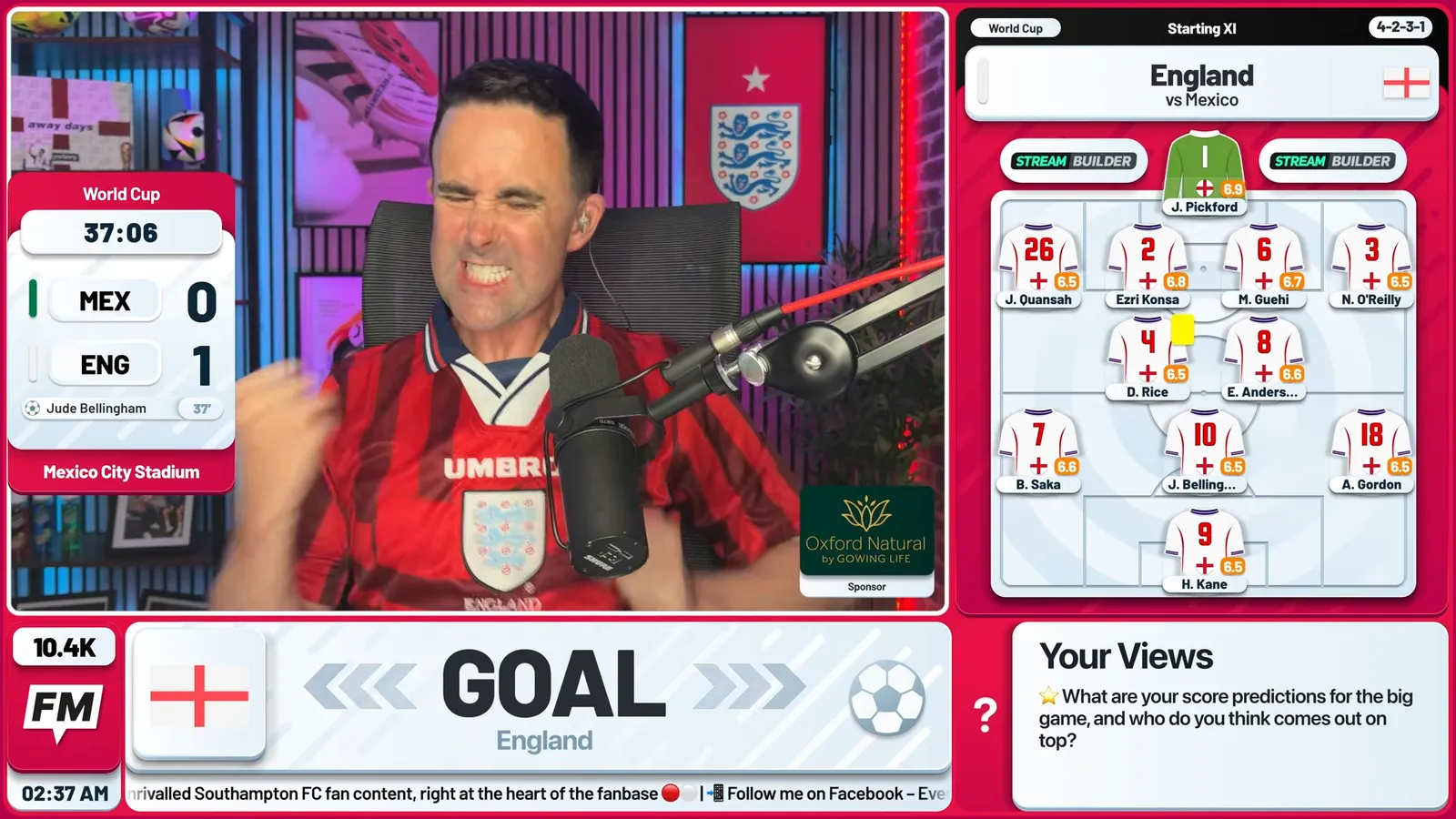
The tactics board widget takes its place in your overlay like any other widget. It draws the pitch on the right of the screen, in the same style as your camera boxes, and leaves the left of the screen clear for your camera. That means you and your guests can sit beside the pitch while you talk it through, the way a pundit stands beside the board.
The widget is turned on and off from your back office with the same eye icon as every other widget, so you can bring the tactics board up for a segment and take it away again when you're done. If you would rather have the pitch on its own, the board also gives you a separate link you can add to OBS as its own browser source.
It's the same approach as the rest of your overlay: one browser source in your streaming software, with the graphics and data running on top of your stream.
Segments you can run with it
A tactics board is most useful when it has a job in your show. A few formats that work well:
- The XI reveal. When the lineups drop, load them onto the board and talk through each team's shape and the big selection calls.
- The half-time fix. Use lines and shapes to show what isn't working, then change the formation to show what you'd do.
- The goal breakdown. Rebuild the move that led to a goal and show where the space opened up.
- The substitution verdict. When a manager makes a change, bring the substitute on and show what it does to the team's shape.
- Fan XI. Build a team live from your viewers' suggestions and let the chat argue about it. It pairs well with the polls and prediction formats you may already run.
Setting it up
If you already stream with Stream Builder, your overlay is in your streaming software as a single browser source, and the tactics board is part of it. You open the tactics board from your back office, choose your teams, and switch the widget on when you want it on screen. If you're setting up OBS for the first time, our OBS settings guide covers it step by step, and our guide to adding guests and cameras shows how to fill the camera space beside the pitch.
Frequently asked questions
What is a tactics board for streaming?
It's a pitch you put on your stream and move players around on live, to explain formations, lineups, goals and substitutions. Viewers see the pitch on screen and every change as you make it.
Do I need design or drawing skills?
No. You drag players where you want them, and lines and shapes are buttons rather than freehand drawing. If you can move a piece on a board, you can use it.
Can I use it for any team or fixture?
Yes. You can search for any club and load its squad, so you aren't limited to the fixture on your overlay. If your overlay is showing a fixture, you can also load its lineups with one click.
Does it update live on the stream?
Yes. Everything you do appears on the stream as you do it, with no publish step.
Is the tactics board included in Stream Builder?
Yes. It's part of Stream Builder and runs from the same back office as your score bug, lineups and other widgets. Tell us about your channel and we'll set it up with your branding.
Does it work in OBS and StreamYard?
It works anywhere a browser source does, including OBS Studio, StreamYard and Streamlabs. You add the link and it renders on top of your stream. Not sure which tool to pick? Here's our StreamYard vs OBS comparison.