
Vertical Streaming for Football Channels: YouTube and TikTok Without the Extra Work
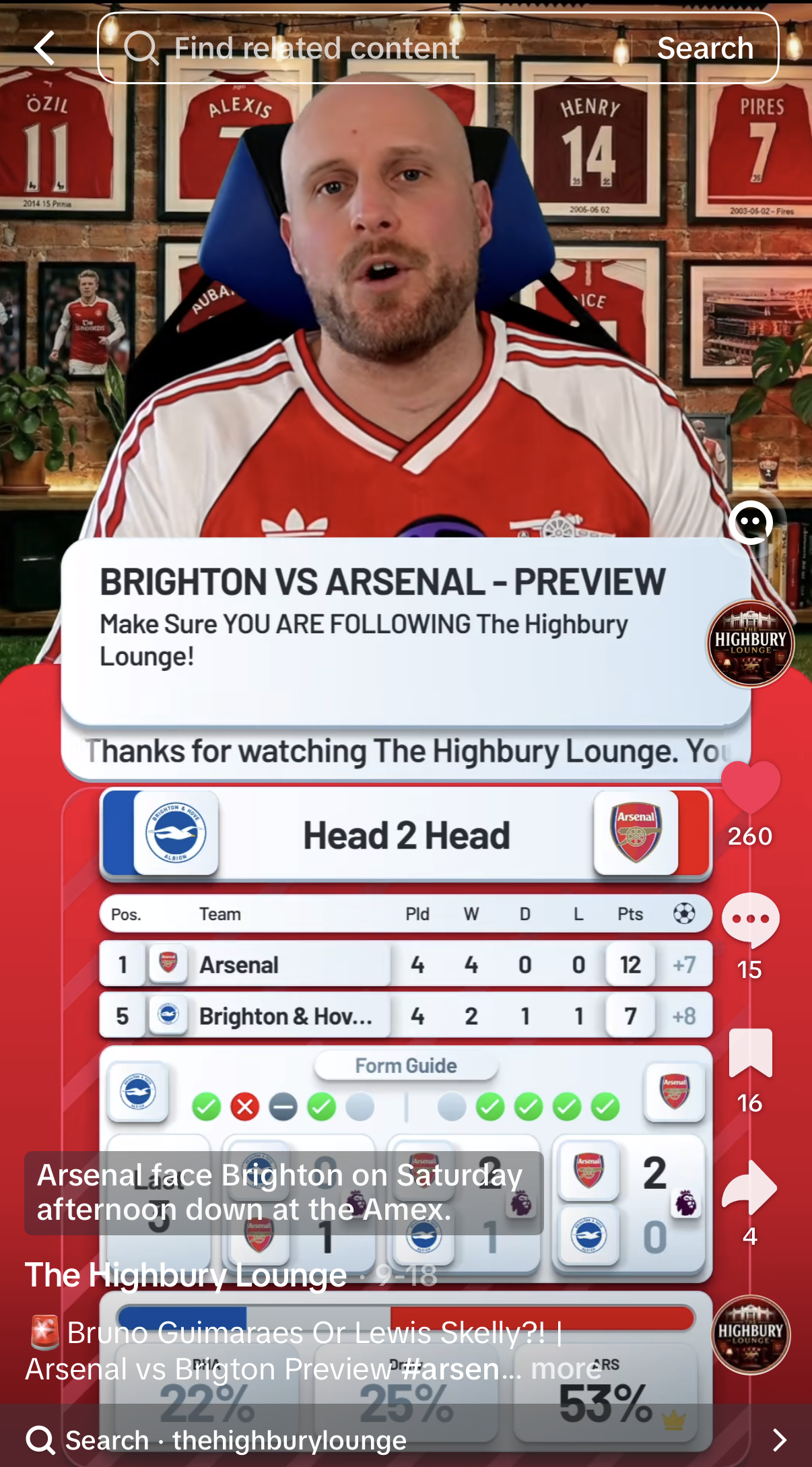
Plenty of football fans watch on their phones, and many of them scroll vertical feeds rather than opening a widescreen video. They land on a live stream, and either stay or swipe. If your channel only streams in landscape, you're easy for them to miss.
Whether you're streaming live, creating videos, or doing both on YouTube or TikTok, the format is the same: a tall frame on a phone, and your match-day graphics need to fit it.
Vertical streaming is how football channels reach that audience. The catch is that a second layout has traditionally meant a second job. This post covers why vertical matters, what changes when you go portrait, and how to run both layouts without doubling your workload.
Why vertical streaming matters for football channels
YouTube and TikTok are both built around a phone held upright. Whether people are watching videos or live streams, they find them by scrolling, not searching, and content that fills the screen tends to hold attention better than a small landscape window letterboxed in the middle of it.
For a football channel, that's an audience of fans who might never find your YouTube watchalong, but will happily stop on a live match reaction in their feed. It's the same community, reached somewhere new.
It also means more places to earn. Each platform has its own routes to revenue, whether that's gifts, super chats, memberships or sponsorship. A channel live on more than one platform is simply more places for a viewer to support you, and more eyeballs for a sponsor to buy.
What changes when you go vertical
Portrait isn't landscape turned on its side. A few things change the moment the frame is taller than it is wide:
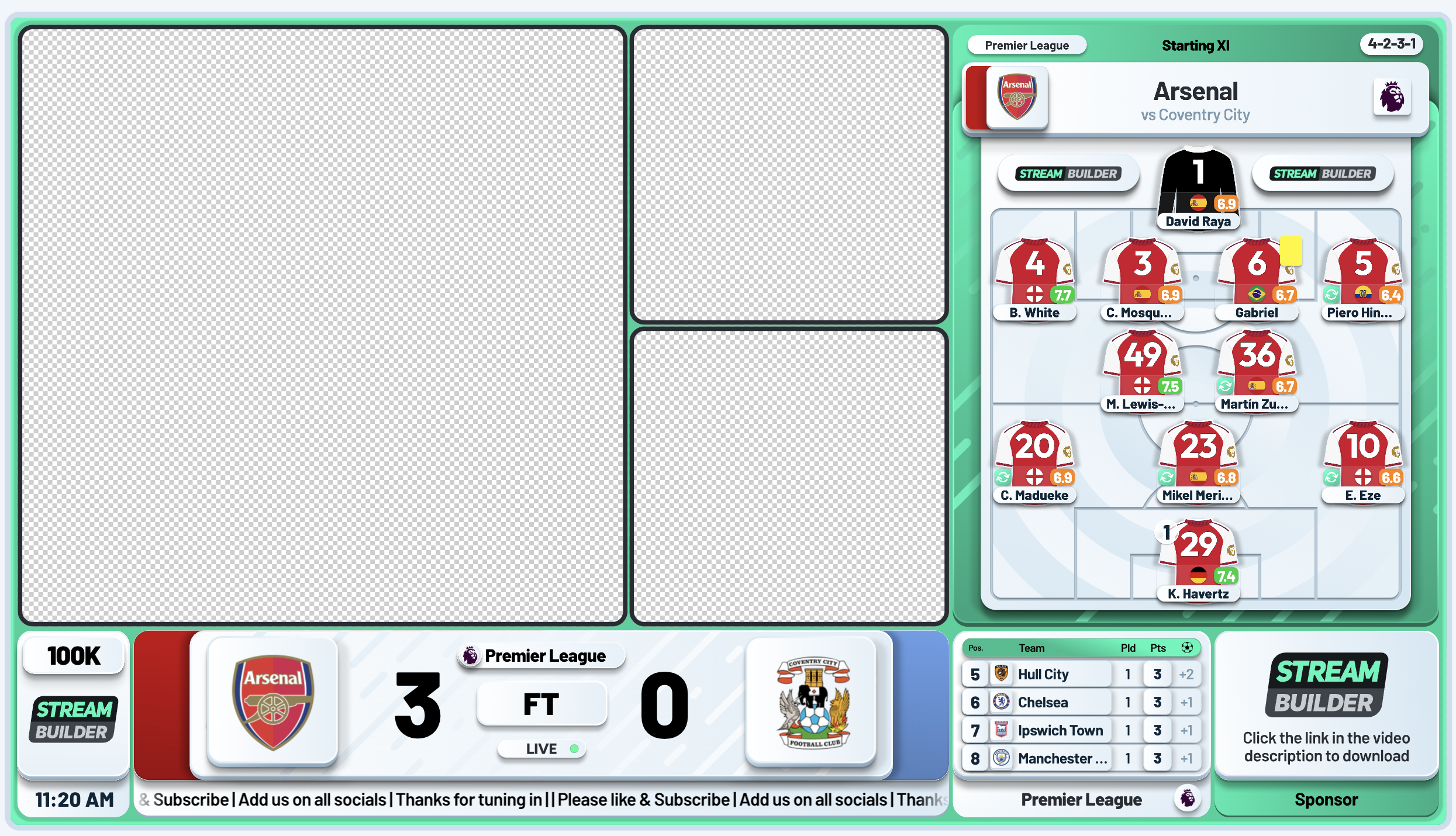
- Less horizontal space. The wide layouts that work on desktop, such as a score bug across the top, a lineup beside your camera, or a table along the bottom, don't fit. Everything has to stack.
- Bigger, simpler graphics. Viewers are holding a phone, so text and numbers need to be large and instantly readable.
- The platform's own buttons. Each app puts its own controls and comments over the edges of the screen, so the important information belongs towards the middle.
- Your camera needs reframing. A landscape webcam feed has to be cropped to a tall frame.
Get those wrong and a vertical stream looks like a squashed copy of your desktop one. Get them right and it looks like it was built for the phone, because it was.
The hidden cost: two layouts, twice the work
Here's where most channels stall. If you build a vertical overlay by hand, you now have two of everything: two layouts to design, two sets of lineups, two scores to keep up to date. Every goal is typed in twice. Every change to your setup has to be made twice. Mid-match, when you should be reacting to what's happening, you're maintaining two overlays.
That's the reason plenty of channels who'd like to be on TikTok never start, and the reason many who do start quietly let the vertical stream fall behind.
One overlay system, two layouts
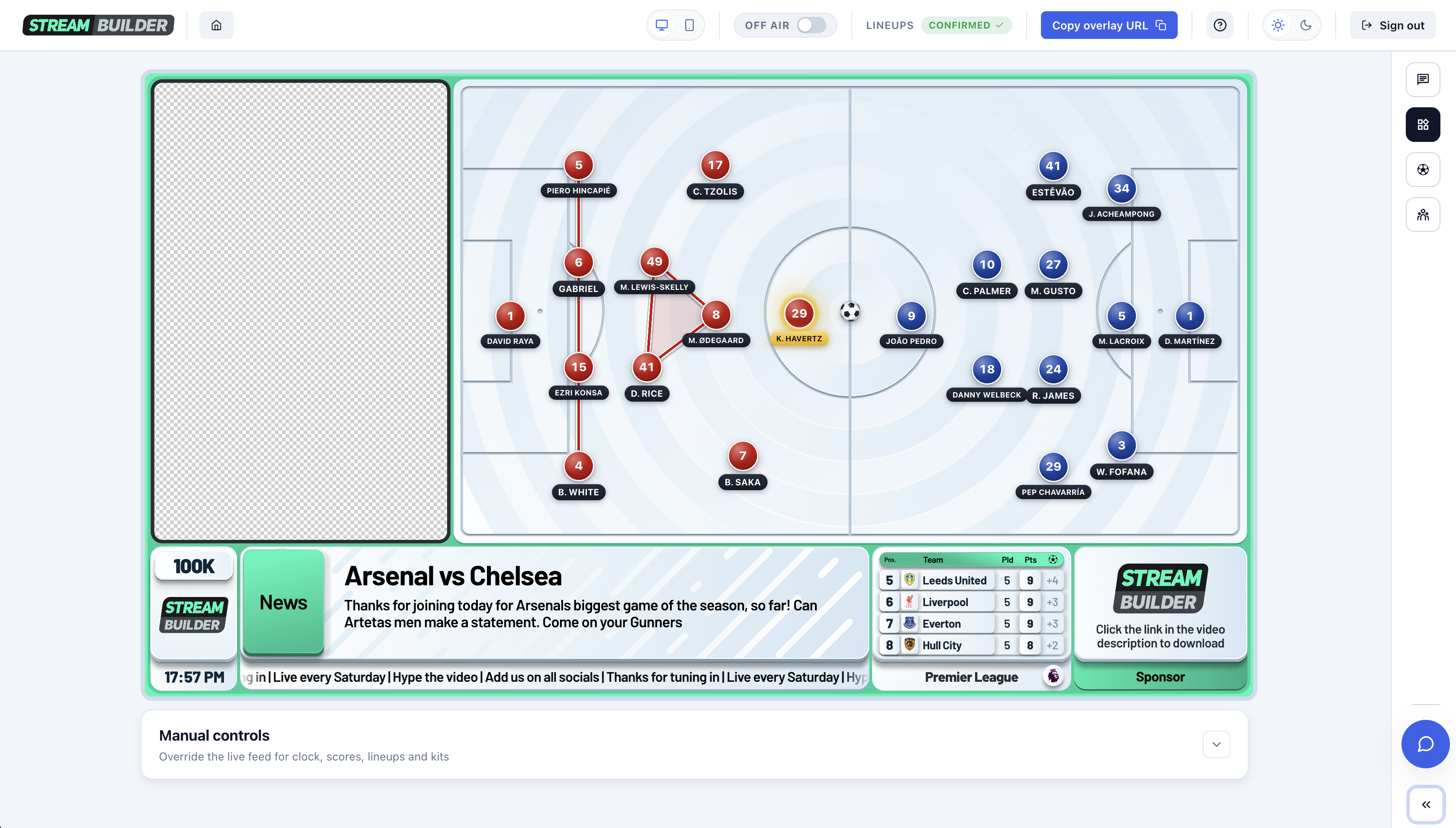
Stream Builder solves this by treating desktop and vertical as two views of the same overlay, not two overlays. You configure your overlay once in your back office, and it outputs to both a desktop overlay and a vertical overlay.
Both use the same data. If you update something on your desktop overlay, it's updated on your vertical overlay too, so you only ever update in one place. Your score, your lineups, your match data and your widgets are set up once, and each layout presents them in the shape that suits its screen.
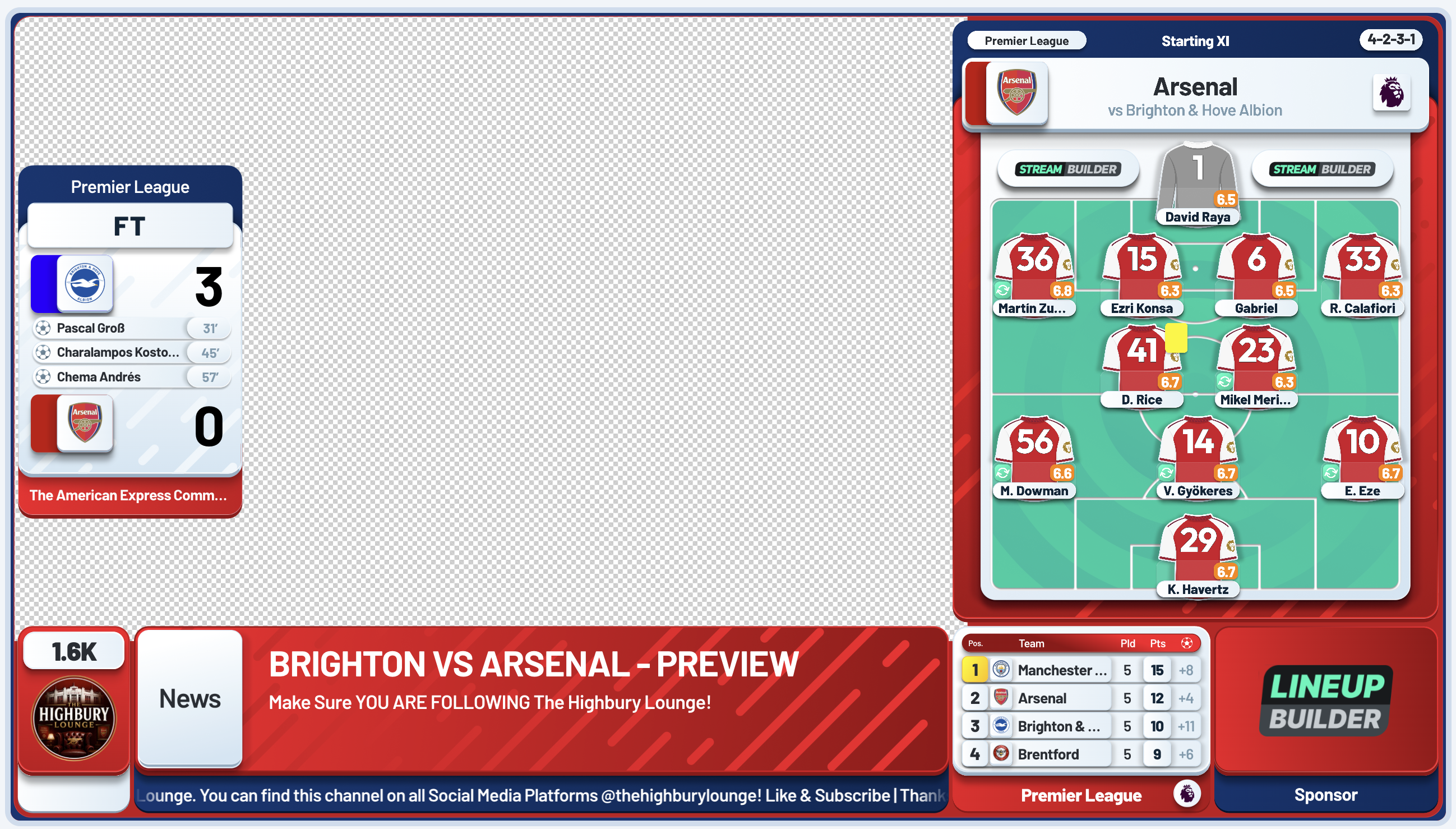
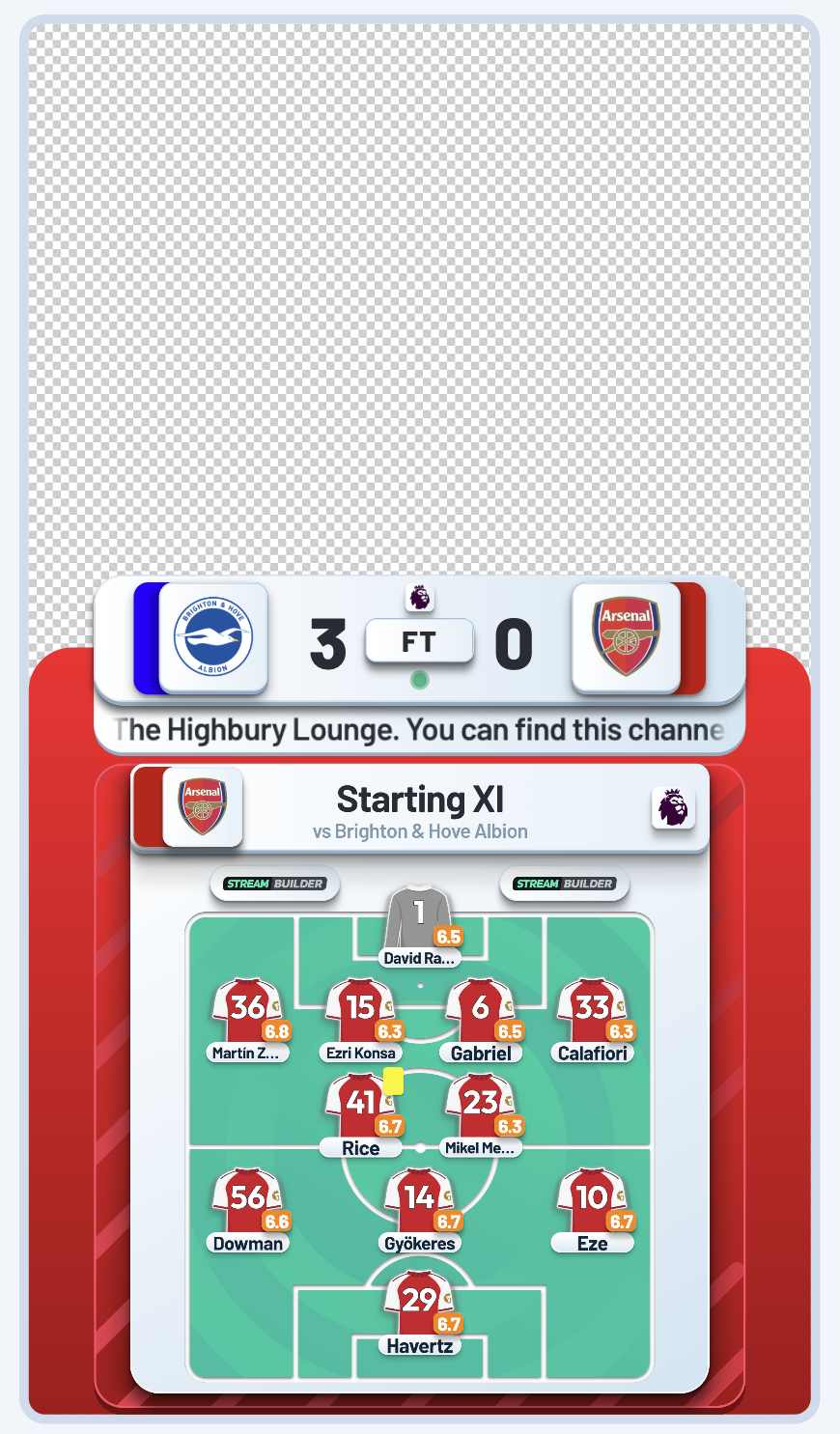
It runs at the same time. Because desktop and vertical are both live from the same setup, you can stream in different layouts to different platforms at once: a landscape stream to YouTube and a vertical stream to TikTok, for example, both showing the same match, both always in step. Less fuss, and more places to earn.
Streaming to two platforms at once
On the overlay side, there's nothing more to do. The rest depends on your streaming software: you need two outputs, one landscape and one portrait, each with its own overlay link added as a browser source.
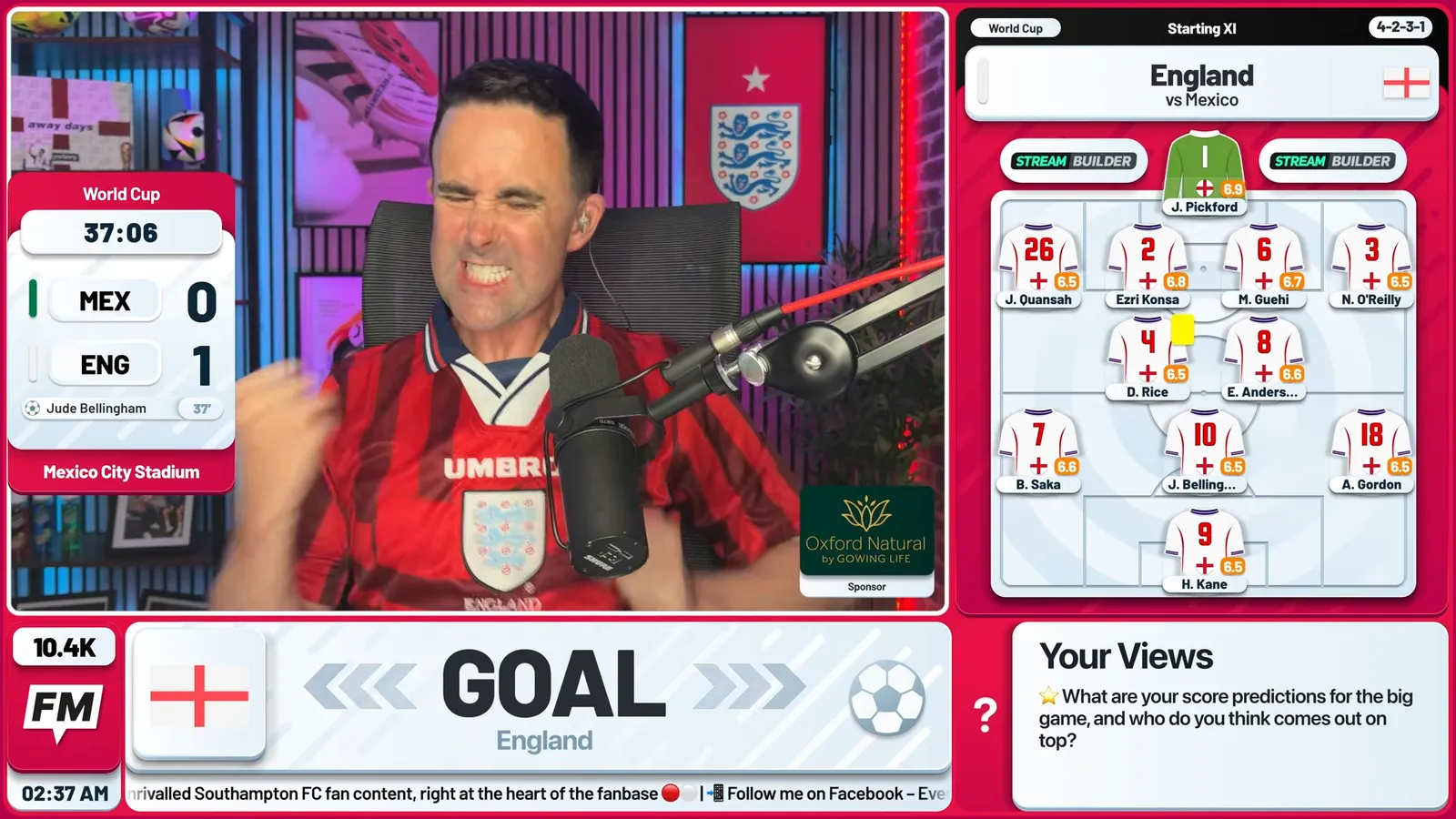
- Add the desktop overlay URL to the scene for your landscape stream, for example the one going to YouTube.
- Add the vertical overlay URL to the scene for your portrait stream, for example the one going to TikTok.
- Crop or reframe your camera for the vertical scene so it fills the tall frame.
The same goes if you record your show to create videos rather than stream it live: the overlay links work in a recording scene just as they do in a live one.
How you run the two outputs is your choice. Some channels run a second copy of their streaming software, and others use a tool that supports a vertical canvas alongside the landscape one. Whichever you choose, running two outputs asks more of your computer, so give it plenty of headroom. If you're new to setting up a browser source, our OBS settings guide walks through it, and our StreamYard vs OBS comparison helps you pick the tool.
Making the most of two audiences
Going vertical works best when you treat the two platforms as two crowds for the same show, not as two separate shows:
- Run the same match, in both places. Your watchalong is the same content; you're just meeting fans where they already are.
- Mention each platform on the other. Tell your YouTube audience you're live on TikTok too, and the other way round.
- Keep it simple on vertical. On a phone screen, less is more, so let the score, lineups and key stats do the work.
- Use the desktop stream for the heavy segments. Polls, the tactics board and camera boxes suit the wider frame.
One set, and you're ready to go
The appeal of vertical streaming has always been the audience. The obstacle has always been the work. With the overlay configured once and output to both layouts, the work disappears: one setup, both formats, the same live data, and two platforms earning for you at once.
Frequently asked questions
Can I stream to TikTok and YouTube at the same time?
Yes. Stream Builder gives you a desktop overlay and a vertical overlay from the same setup, so you can add the desktop link to your YouTube stream and the vertical link to your TikTok stream. You'll need two outputs from your streaming software, one for each layout.
Do I have to build two separate overlays?
No. You configure your overlay once in the back office, and both the desktop and vertical overlays run from it. They use the same data, so anything you update on one is updated on the other.
How do I get the vertical overlay link?
In your back office, switch the preview to vertical and click Copy overlay URL. The link you copy depends on the preview you're looking at: desktop gives you the desktop URL and vertical gives you the vertical URL.
Does it work in OBS and StreamYard?
It works anywhere a browser source does, including OBS Studio, StreamYard and Streamlabs. You add the link for the layout you want and it renders on top of your stream.
Do I need a powerful computer to stream two layouts?
Running two outputs at once asks more of your computer than one, so a capable machine helps. Stream Builder's overlay is lightweight, but your streaming software is doing the heavy lifting of encoding both streams.