
How to Add Multiple Cameras and Guests to OBS with VDO.Ninja
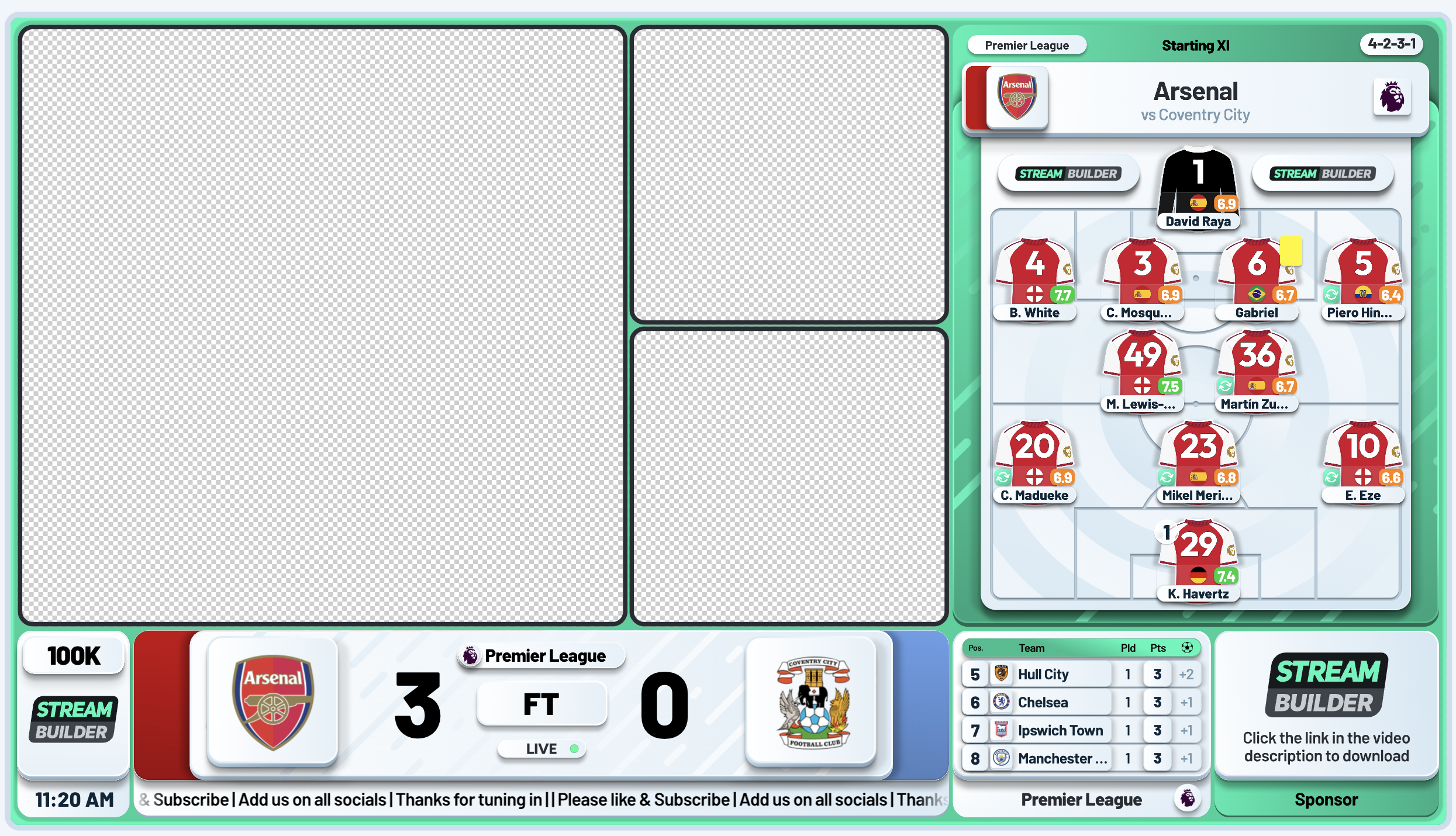
A one-camera watchalong is fine. A panel is better. The moment you get two or three co-hosts reacting to the same goal, the show stops being a monologue and starts being a conversation, and the chat notices immediately.
The problem is that your co-hosts are rarely in the same room. They're in another city, on a laptop, on a phone in a car park. Getting their camera into your OBS, at good quality, without paying for a studio product, is the bit that stops most channels from ever trying it.
VDO.Ninja solves it. It's free, there's nothing to download, nobody has to make an account, and it sends video peer-to-peer directly into OBS with very low latency. Here's how to wire it up, and how to drop the results into Stream Builder's camera boxes so the finished thing looks like a broadcast rather than a video call.
What VDO.Ninja actually does
VDO.Ninja is a web page that turns any browser into a video sender or receiver. Your guest opens a link, allows their camera, and that's it: their video is now available at a URL you can open in OBS as a browser source.
Nothing is installed, nothing is recorded on a server, and there's no sign-in. The video goes directly from your guest's machine to yours wherever the network allows it, which is why the latency is so much lower than a conference call bounced through a data centre.
For a fan channel the important consequence is this: each guest arrives in OBS as their own separate source. You are not screen-capturing a Zoom grid. You get individual video feeds you can position, crop, and frame however you like, which is exactly what you need for a designed layout.
Step 1: Create a room
Go to vdo.ninja and choose Create a Room.
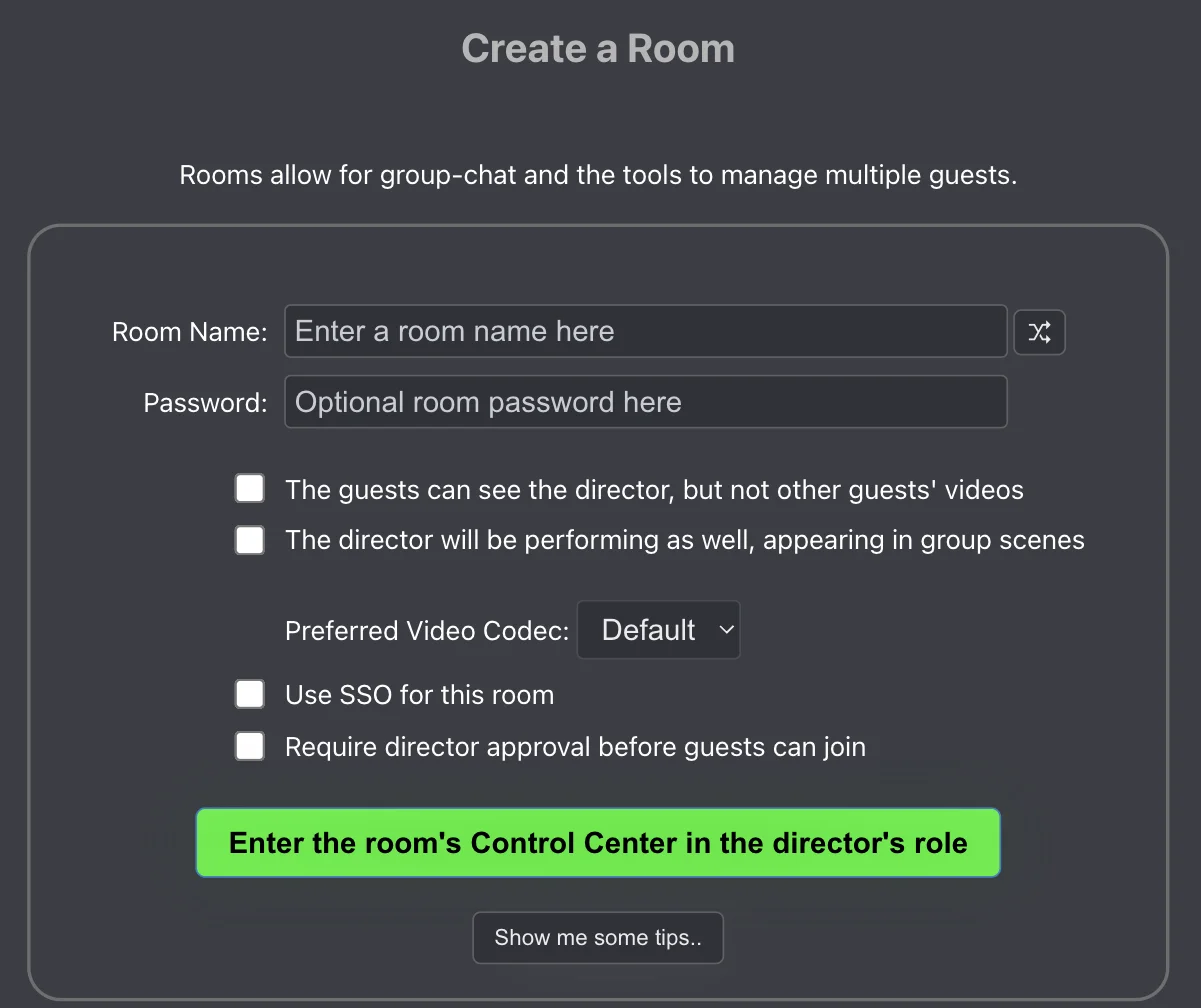
Give the room a name. A couple of things worth doing while you're here:
- Set a password. A room name on its own is public: if someone guesses
arsenalwatchalongthey can walk into your show. A room name plus a password is treated as a completely separate room, so the password is what actually keeps it private. - Tick "Require director approval before guests can join" if the link is going anywhere semi-public. Guests then sit in a waiting state until you let them in.
- Tick "The director will be performing as well" if you're on camera too. Leave it unticked if you're producing only.
You'll land in the director's Control Centre. This is your control room for the whole show: you can see every guest, mute them, hide them, and grab their individual links from here.
Step 2: Send each guest their link
The Control Centre gives you an invite link to share. Guests open it, allow camera and microphone, and appear in your room.
For a show you'll run every week, it's worth giving each guest a fixed stream ID rather than letting VDO.Ninja generate a random one each time. A stream ID is just a name for that guest's video feed:
https://vdo.ninja/?room=YOURROOM&password=YOURPASSWORD&push=DANNY&label=Dannyhttps://vdo.ninja/?room=YOURROOM&password=YOURPASSWORD&push=SOPHIE&label=Sophie
&push= sets that guest's stream ID, and &label= sets the friendly name shown in the interface. Because the IDs are fixed, the OBS sources you build in step 3 will keep working week after week: Danny opens his link, and the source you already positioned picks him up automatically.
Two practical notes for guests. Ask them to use Chrome, and ask them to wear headphones. Headphones are not optional in a panel show; without them, everyone's microphone picks up everyone else's audio and you get echo that no amount of OBS filtering will fix.
Step 3: Pull each guest into OBS as their own browser source
In the director's Control Centre, each guest's video box has a Solo Link button. That link is a clean, isolated, high-quality feed of just that guest.
Add one browser source per guest:
- In your OBS scene, click + under Sources and choose Browser.
- Paste that guest's solo link.
- Set the width and height to 1920x1080.
You can also write the links by hand, which is easier when you're setting up a repeatable show:
https://vdo.ninja/?view=DANNY&room=YOURROOM&password=YOURPASSWORD&solo&cleanoutputhttps://vdo.ninja/?view=SOPHIE&room=YOURROOM&password=YOURPASSWORD&solo&cleanoutput
The &view= value matches the &push= value you gave that guest. &solo makes it an isolated single-guest feed, and &cleanoutput strips VDO.Ninja's own buttons and UI so you get nothing but video.
Leave the audio on these sources. Each browser source will carry that guest's microphone, which gives you a separate volume fader per guest in the OBS audio mixer — mute one person who's got a dog barking, without touching anybody else. Only add &noaudio to a source if you're pulling the same guest into a second source, or routing their audio some other way, otherwise you'll get them twice and it will sound awful.
Step 4: Turn on camera boxes in Stream Builder
Now the part that makes it look like a show rather than a call. In the Stream Builder backoffice, open Widgets Control and scroll to the Streaming section.
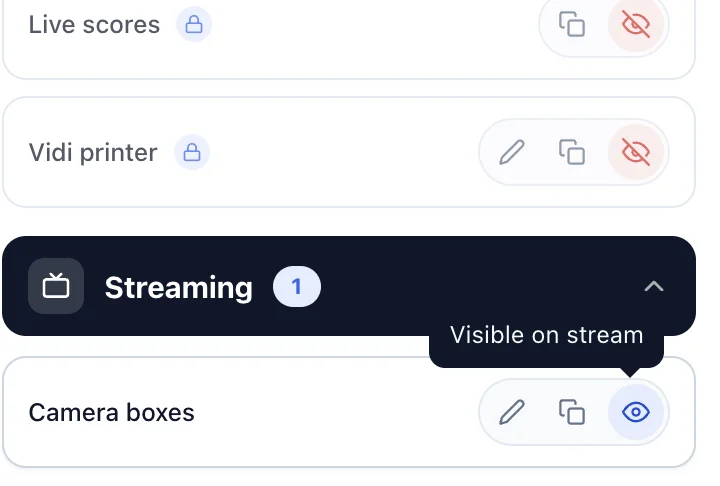
Click the eye icon to make camera boxes visible on stream, then the pencil to choose your layout.
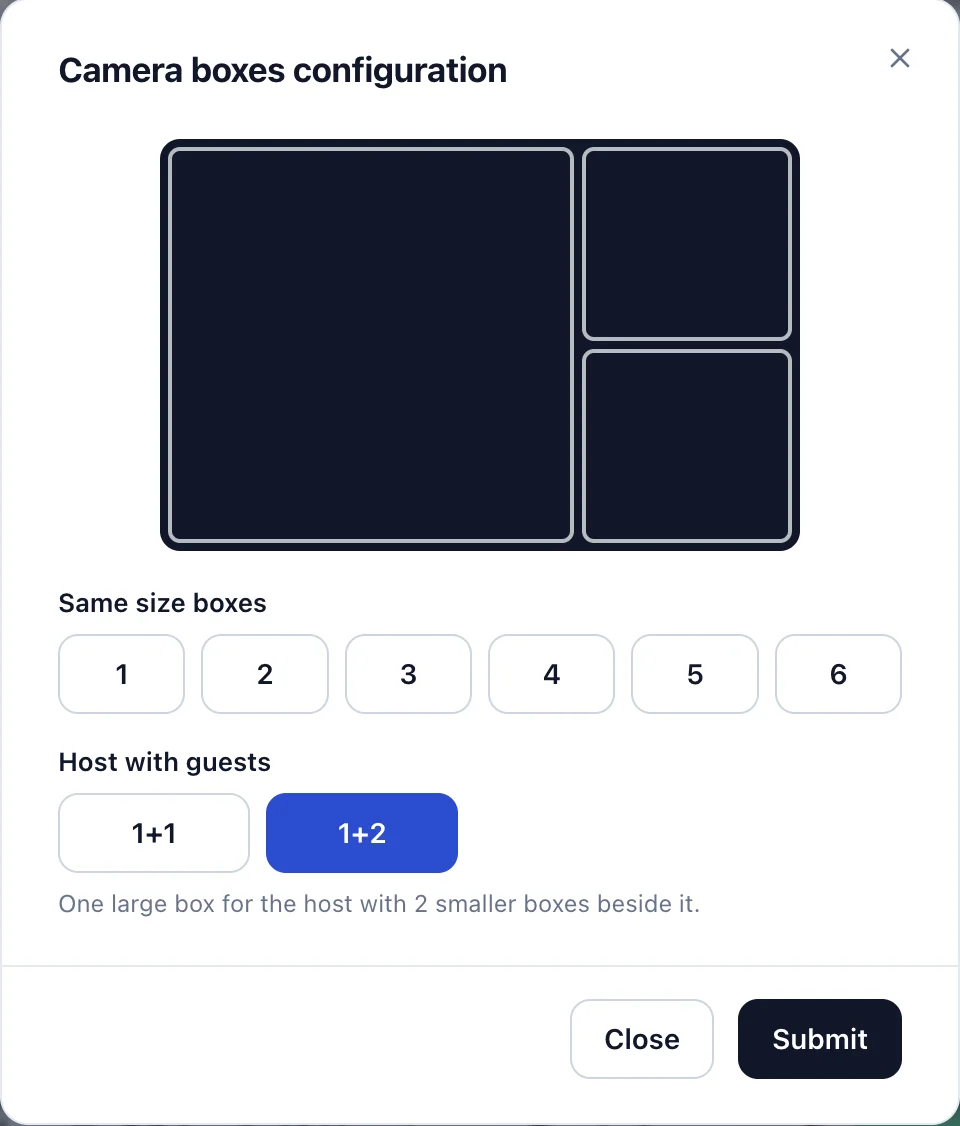
There are two families of layout:
- Same size boxes, from 1 to 6. Everyone gets equal billing. Four gives you a 2x2 grid, five gives you three across the top and two below, six gives you two rows of three.
- Host with guests, as 1+1 or 1+2. One large box for whoever is anchoring the show, with the smaller guest boxes stacked beside it.
Pick the one that matches how many people are actually on camera. If your third guest drops out at half time, change it mid-show and the layout reflows straight away.
Step 5: Layer it correctly in OBS
This is the step people get wrong, so it's worth being explicit.
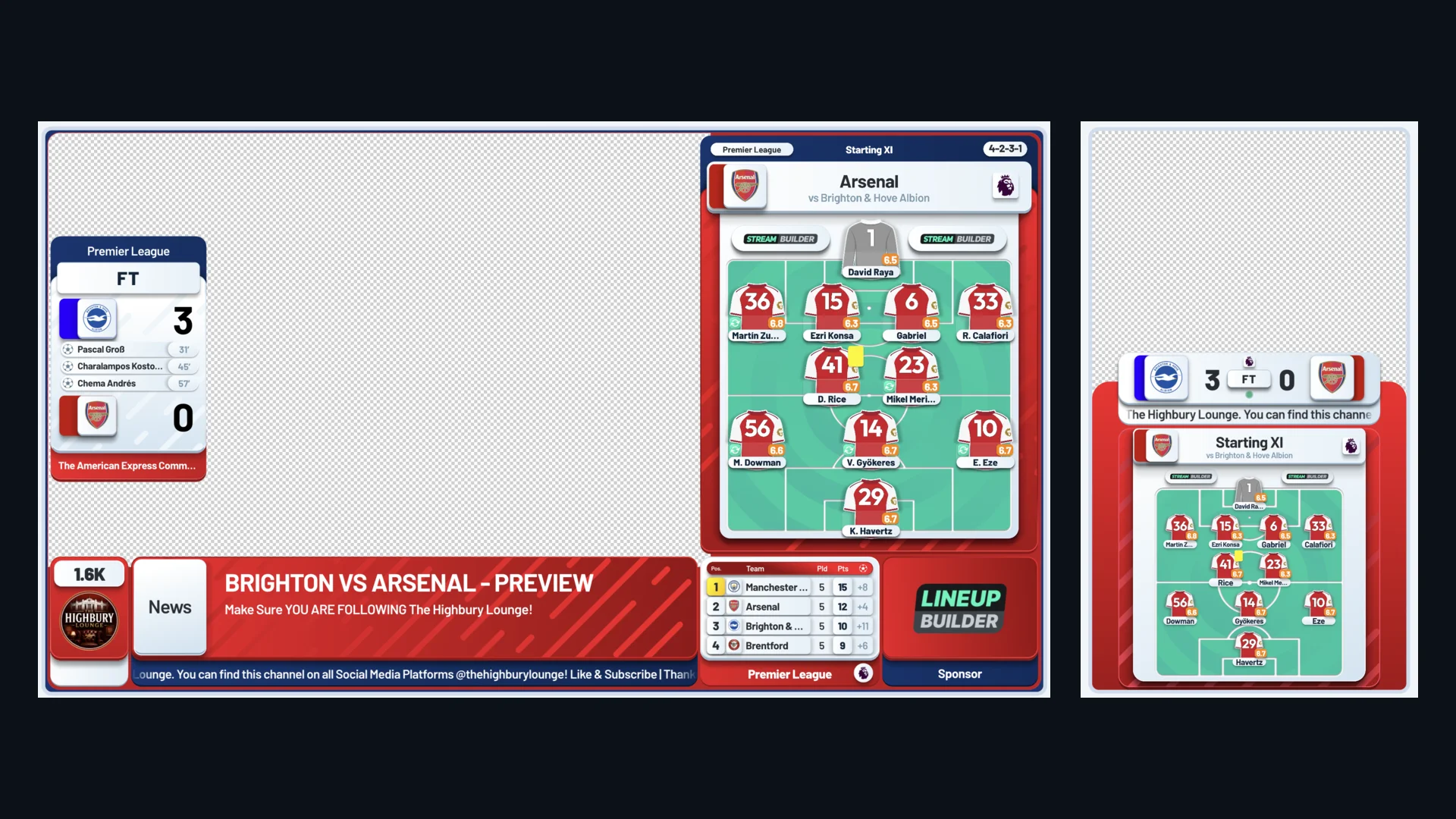
The camera boxes are not pictures of cameras. They're holes. Stream Builder draws your branded background across the whole canvas and cuts transparent, rounded-corner windows out of it, then draws the borders back on top. Your video has to sit _underneath_ so it shows through the windows.
So in your OBS source list, top to bottom:
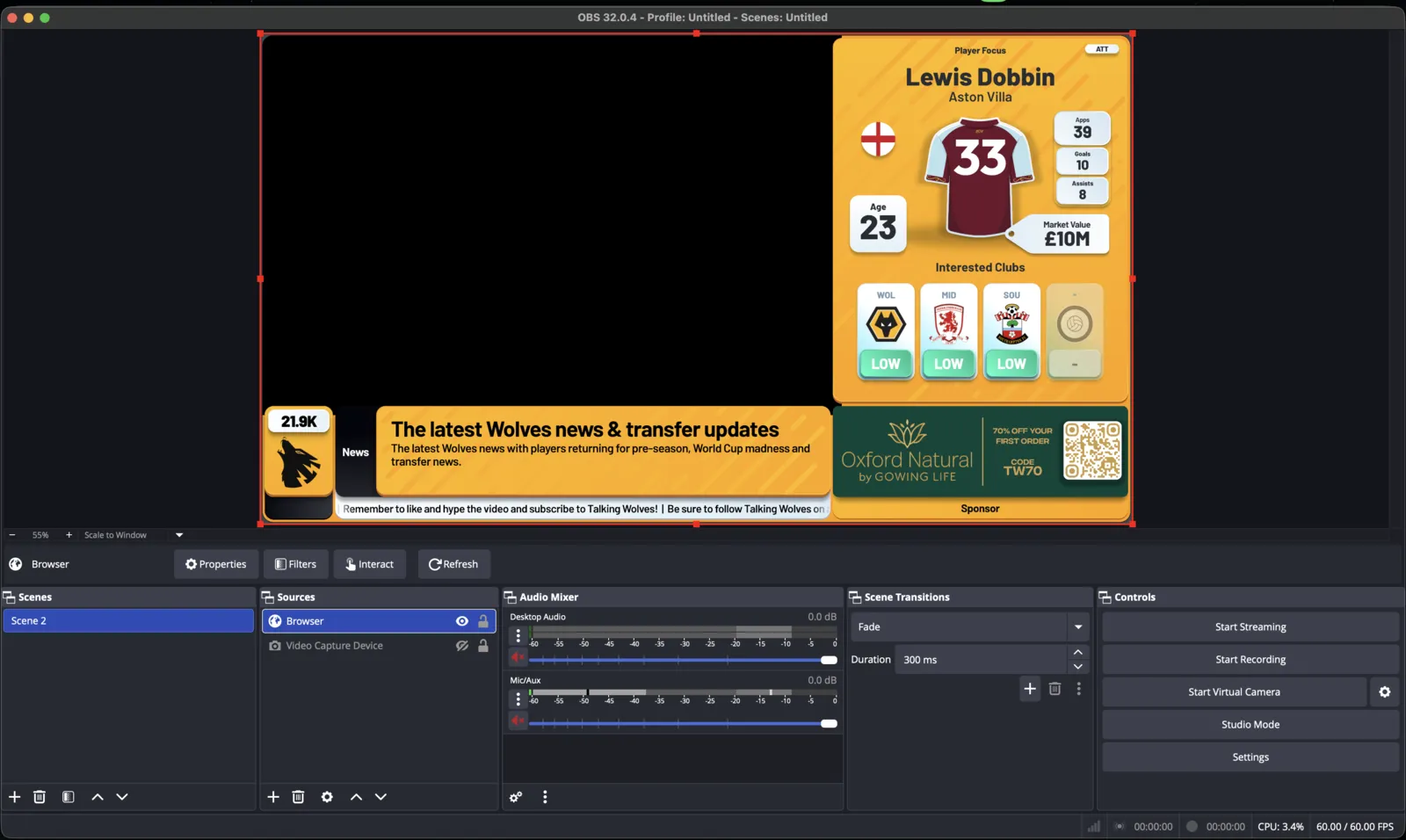
- Stream Builder overlay (browser source, 1920x1080) — at the top
- Each guest's VDO.Ninja browser source — below it
- Anything else, like a background image
With the overlay on top you can see the box outlines while you're editing, which makes positioning easy: drag and scale each guest's source until it fills its box. Hold Alt while dragging a source edge to crop it, which is how you deal with a guest whose webcam is a different aspect ratio to the box.
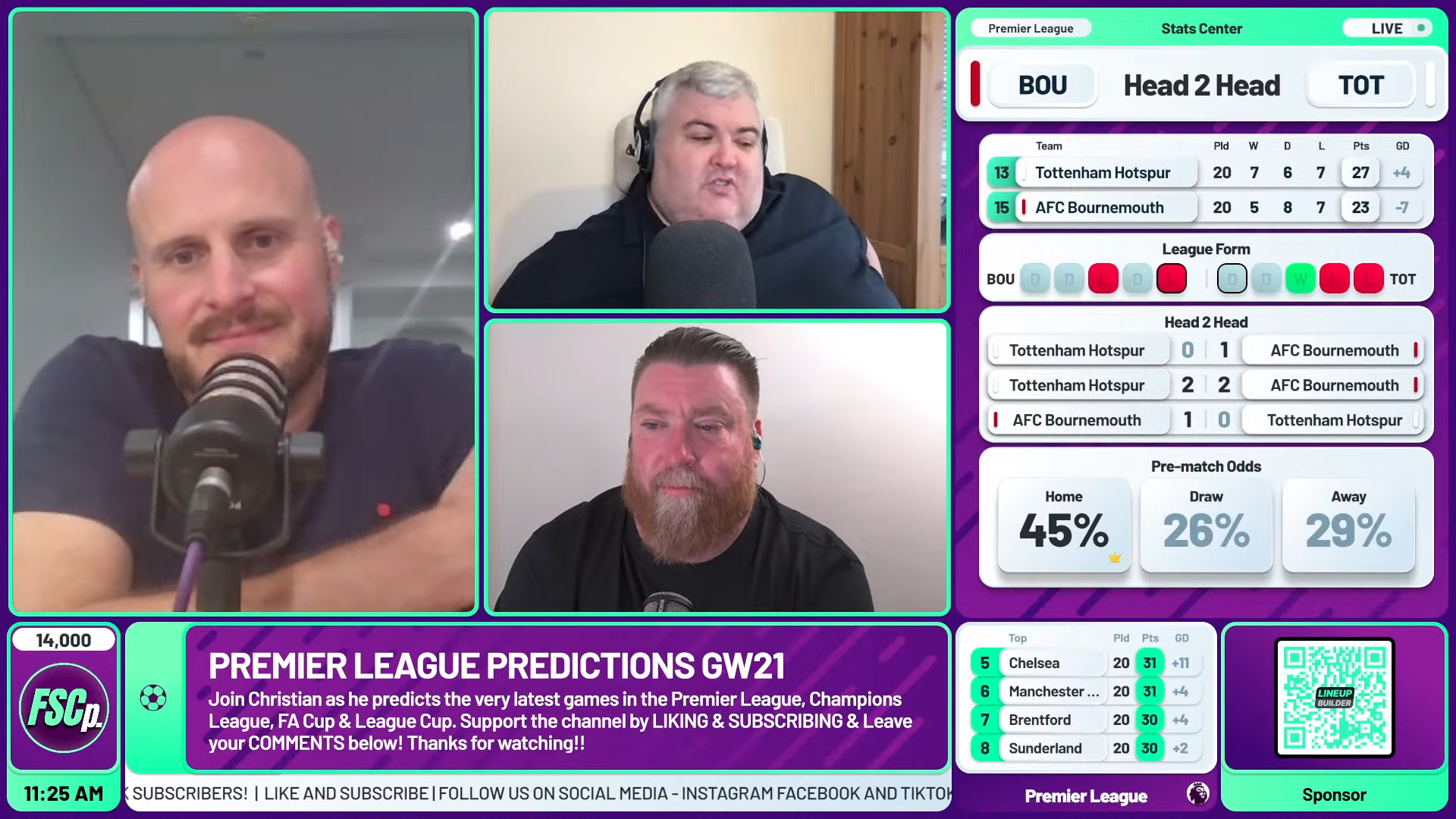
One behaviour worth knowing about: the boxes are aware of the rest of your overlay. When a right-side widget like lineups, the league table, or live scores is on screen, the camera boxes narrow to make room for it. When you hide that widget, they stretch back out across the full width. You don't have to do anything, but it does mean you should check your framing with a right-side widget both on and off before you go live.
“The tools are dead simple, the layouts actually make my streams pop, and the support team? Fast, friendly, and they actually give a damn.”
Christian Gladdish, Footie Social Club
Getting the quality right
A few things make the difference between a panel that looks sharp and one that looks like a 2009 Skype call.
- Bitrate per guest. You can request a specific bitrate on each OBS source by adding
&videobitrate=4000to the solo link. More guests means more total bandwidth, so don't set every guest to a high number and expect it to hold. Start moderate and raise it only if it's stable. - Your upload is shared. Every guest feed you pull in uses your download, but your outgoing stream to YouTube still needs its own headroom. See our OBS settings guide for the bitrate and encoder side of that.
- Don't pull a guest twice. Every viewer of a feed adds load to that guest's machine. One source per guest.
- For bigger panels, go publish-only. In a normal room every guest sends video to every other guest, which gets heavy past four or five people. Adding a bare
&viewwith no value to a guest's invite link makes them publish only — they send their camera to you but don't download everyone else's. They won't see the other guests, so only use it when guests don't need to see each other, or when you're sending them the finished OBS output another way.
Test it before match day
Run the whole thing on a quiet evening with at least one guest: room, solo sources in OBS, camera boxes on, overlay on top. Watch it back on another device and check three things.
Does each guest sit properly inside their box, with no gaps at the edges and nobody's forehead cut off? Can you hear each guest cleanly, at similar volume, with no echo? And does the layout still look right when a lineup or table widget appears and the boxes narrow?
Ten minutes of that on a Tuesday is the difference between a panel show and a scramble at ten to eight on a Saturday. Once it's set up, it's set up: the same links, the same sources, the same layout, every week.
Frequently asked questions
Is VDO.Ninja free?
Yes. It's completely free, there's nothing to download, and neither you nor your guests need an account. It's funded by its developer rather than by subscriptions, and there's no paid tier you need for multi-guest rooms.
How many guests can I have in one room?
Technically a lot, but practically you'll hit your own computer's limits first. Four to six guests is comfortable for most fan channels on normal hardware. Past that, use publish-only guest links — add a bare &view to each invite — so guests aren't also downloading each other's video.
Why is my guest's video not showing in OBS?
Almost always layer order: the Stream Builder overlay has to be above the guest sources, not below. If the source is genuinely blank rather than hidden, try disabling hardware acceleration in OBS, which is a known cause of blank VDO.Ninja browser sources.
How do I stop the echo when guests talk?
Headphones, on everyone. Echo happens when a guest's speakers play the other guests' audio and their own microphone picks it back up. No filter fixes it reliably — headphones do, completely.
Can I change the camera layout mid-stream?
Yes. Open camera boxes in the Stream Builder backoffice and pick a different layout, and the overlay reflows live. That's how you handle a guest joining at kick-off or dropping out at half time.
Do I need VDO.Ninja if I only have one camera?
No. With one camera you can still switch camera boxes on and set it to the single-box layout, which frames your own webcam in the same branded window. VDO.Ninja only becomes necessary once you want someone else's camera in your stream.