
The Best OBS Settings for Streaming to YouTube
Nothing kills a stream faster than lag or blurry video. Viewers will forgive a missed prediction; they won't forgive a broadcast they can't watch. The good news is that a smooth, sharp YouTube stream comes down to a handful of OBS settings, and once they're right you never have to think about them again. Here's the exact setup, top to bottom.
Step 1: Connect OBS to YouTube
- Open OBS and go to Settings, then Stream.
- Under Service, choose YouTube - RTMPS. The S matters: it's the secure ingest and the most reliable route to YouTube.
- Under Server, choose Primary YouTube ingest server.
- Connect your YouTube account directly, or paste in a stream key from YouTube Studio. Connecting the account is easier and lets you manage the stream from inside OBS.
Step 2: Video settings that YouTube actually rewards
- Base (canvas) resolution: 1920x1080.
- Output (scaled) resolution: 1920x1080. Don't downscale; YouTube compresses enough already.
- Common FPS value: 30 is the safe default. If your content is fast-moving, 60 looks noticeably smoother.
For a football watchalong, 30fps is usually plenty. Remember you're not broadcasting the match footage; your stream is your camera and your graphics, and neither needs 60 frames a second. If your machine and connection have headroom, 60fps is a nice-to-have rather than a must.
Step 3: Encoder and output settings
- Set Output Mode to Advanced.
- Video encoder: NVIDIA NVENC H.264 if you have an NVIDIA card, or whatever dedicated graphics encoder your machine offers (Apple hardware encoding on a Mac, AMD on Radeon). A hardware encoder takes the load off your CPU and gives better results.
- No dedicated graphics card? Use x264, and drop the preset if your CPU struggles.
- Audio encoder: leave it on AAC (Core Audio AAC on a Mac). No changes needed.
- Rate control: CBR (constant bitrate).
- Bitrate: 10,000 Kbps for 1080p on YouTube.
- Keyframe interval: 2 seconds. YouTube expects this; leaving it on auto can cause buffering for viewers.
- Encoder preset: start on a quality-leaning preset like 'Slow (Good Quality)' and only step down if your stream stutters.
Step 4: Check your internet can carry it
A 10,000 Kbps stream needs headroom above 10 Mbps of upload. Aim for at least 15 to 20 Mbps upload speed, tested on the machine you stream from, ideally over ethernet rather than Wi-Fi. If your upload can't sustain that, drop the bitrate to 6,000 Kbps before you drop the resolution; a clean 1080p at a lower bitrate beats a stuttering one at 10,000.
Step 5: Add your graphics as a browser source
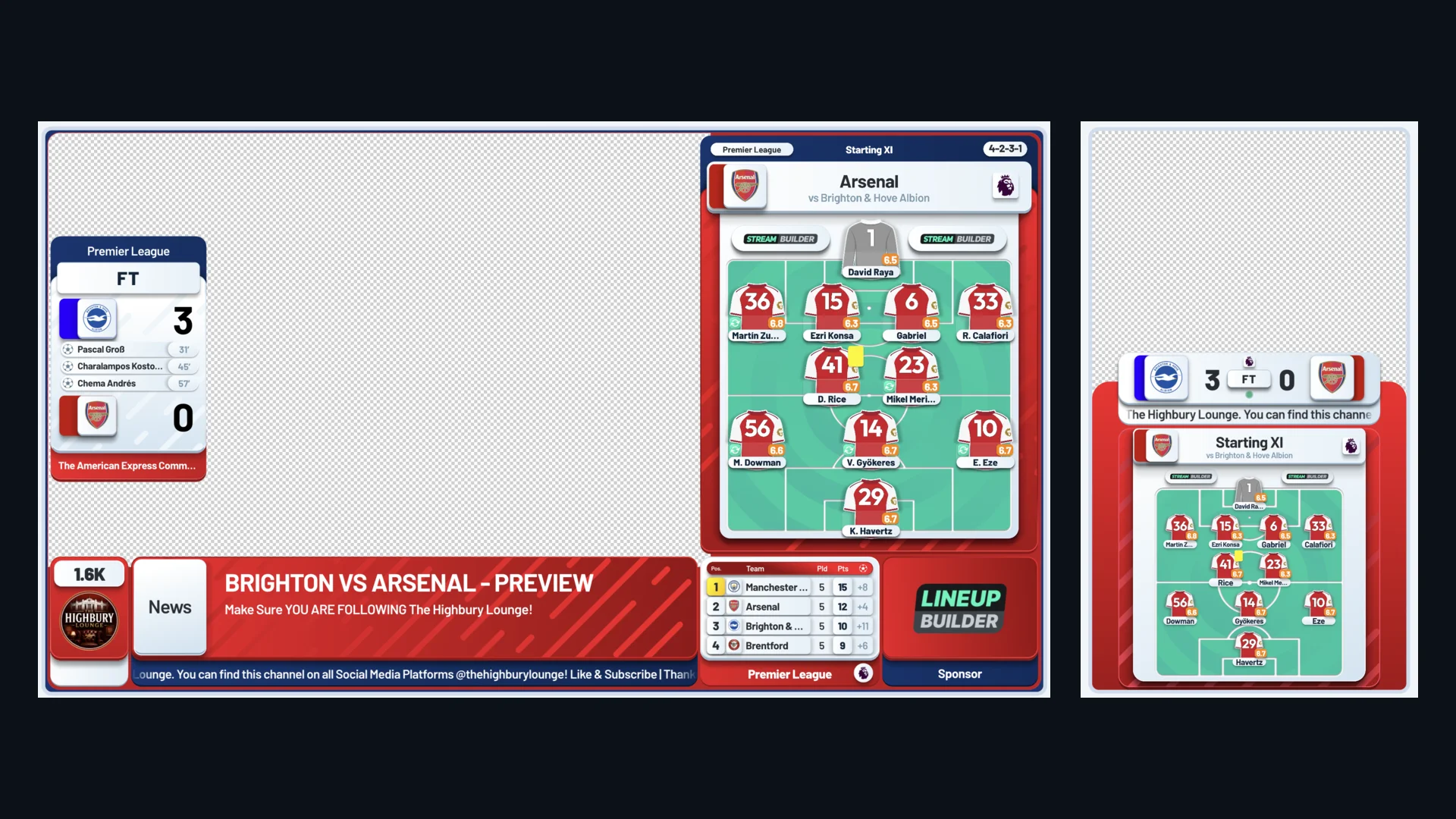
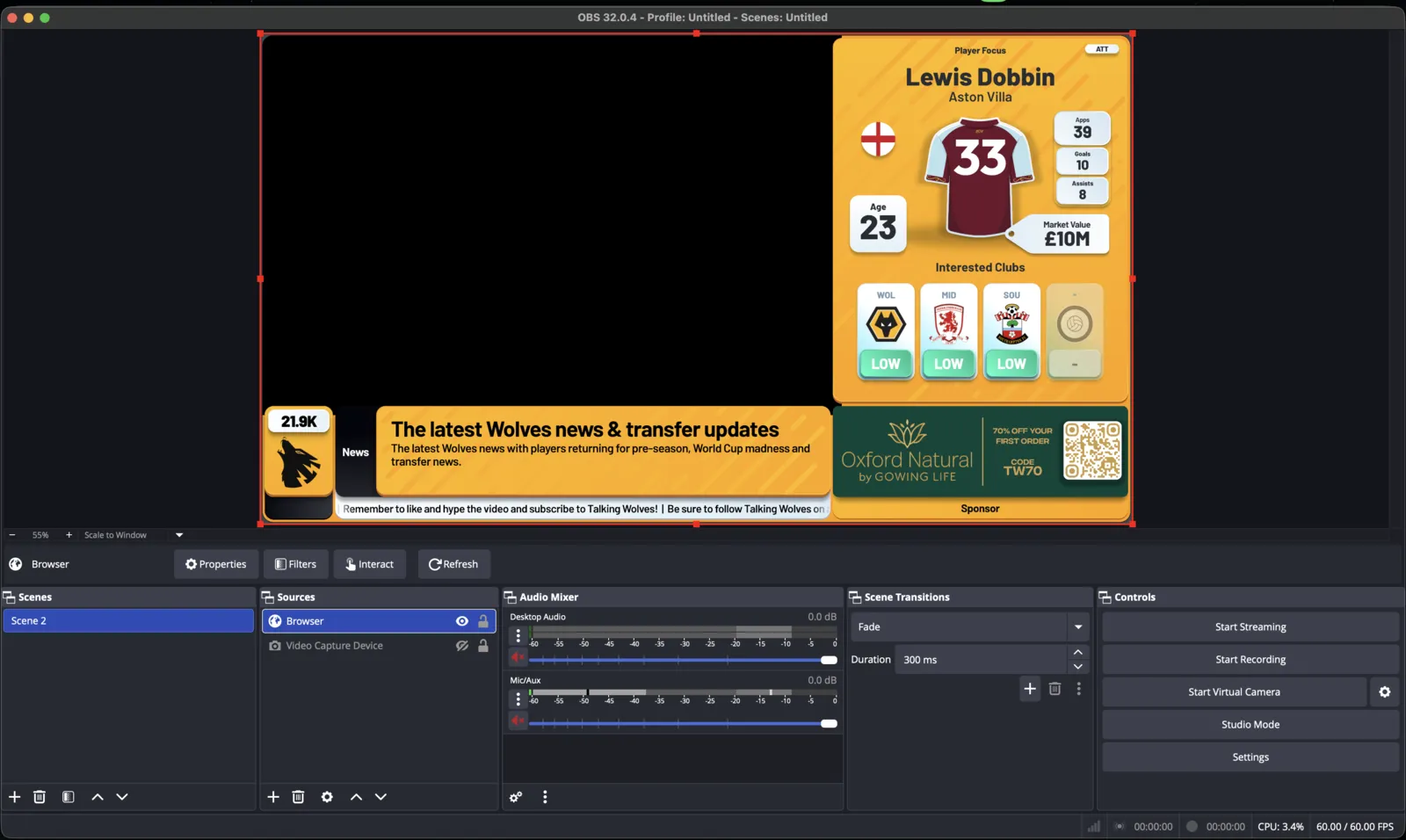
Settings make your stream smooth. Graphics make it look professional. In OBS, overlays run as a browser source: a web page rendered directly on top of your camera. This is the technology behind OTT graphics, and it's exactly how Stream Builder works. Your entire overlay system (the score bug, lineups, live stats, sponsor slot, super chats) is one URL.
- In your scene, click the + under Sources and choose Browser.
- Paste your overlay URL. For Stream Builder channels, this is the single link we hand you at setup.
- Set the width and height to 1920x1080 so the overlay matches your canvas.
- Drag the browser source above your camera in the source list. That's it: the graphics sit on top and update themselves with live match data all game.
Prefer a browser-based studio to desktop software? The same overlay link works there too — see StreamYard vs OBS for which suits your show.
Running a panel rather than a solo show? Adding multiple cameras and guests with VDO.Ninja covers getting remote co-hosts into these same scenes.
“Whenever we have required assistance, they've been on hand to help immediately and efficiently too but we don't require assistance anymore as it just works. And we like things that just work.”
Geo Mackie, Hammers Chat
Step 6: Test before match day
Run a private test stream with the full setup: camera, microphone, and overlay live. Watch it back on another device and check three things: the video is sharp in motion, the audio is clean with no TV bleed, and the overlay is crisp at full size. Ten minutes of testing on a Tuesday saves a scramble at seven forty-five on a Saturday.
Frequently asked questions
What bitrate should I use for 1080p streaming to YouTube?
10,000 Kbps on CBR (constant bitrate), with a keyframe interval of 2 seconds. Make sure your upload speed is at least 15 to 20 Mbps so the stream has headroom.
Should I stream at 30fps or 60fps?
30fps is the safe default and plenty for a watchalong, where your stream is your camera and graphics rather than match footage. Use 60fps if you're showing fast-moving content and your encoder and upload speed can handle it.
Which encoder should I pick in OBS?
A hardware encoder if you have one: NVIDIA NVENC H.264, AMD, or Apple hardware encoding on a Mac. It takes the load off your CPU and gives better results. Use x264 only if you have no dedicated graphics option.
How do I add an overlay to OBS?
Add a browser source to your scene, paste the overlay URL, set it to 1920x1080, and place it above your camera in the source list. Stream Builder overlays work exactly this way: one link, and the graphics update themselves with live match data.